The studio

Strivelabs · Library

Designing the Library in Strive

Files in Strive used to live only inside the chat they were dropped into. Library gives them one home, taking after ChatGPT’s. I kept it small, clean and built to extend, and made sure nothing on the page jumps, flashes or blinks.

My part
Design and frontend, designed straight in code
Taking after
ChatGPT’s library
Status
Live
The live page: open a file, and it fades in where its placeholder sat.

Backstory

Files lived inside chats
  • People upload a lot into Strive: screenshots of ad dashboards, brand guidelines as PDFs, product shots for a blog post. Each file lived only in the chat it came in, so using it again meant finding that chat, or uploading it twice.
  • So I scoped v1 to the smallest version that works, built to extend: more formats and share permissions can follow without a rewrite. On the UI, I went for clean and uncluttered, taking heavily after ChatGPT on the web.
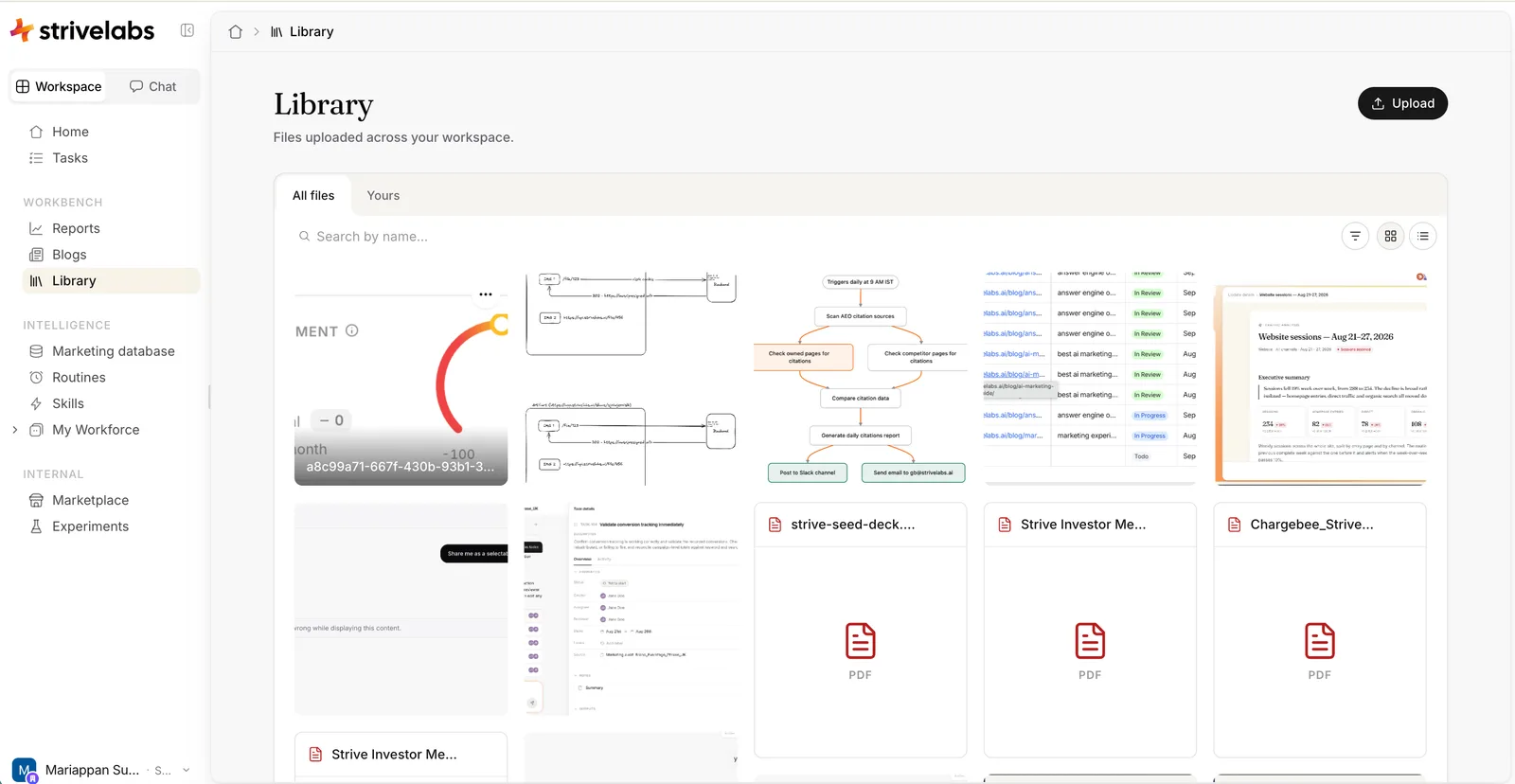
The Library in Strive, in grid view: Library is active in the platform sidebar, under Reports and Blogs. The page has its title, “Files uploaded across your workspace” and an Upload button, then a card with All files and Yours tabs, a search box, and filter, grid and list buttons. Below, a masonry grid of screenshots in their own shapes, and PDFs as cards with the file name on top and a PDF mark.
  1. A home in the sidebar. A dedicated place in the workbench.
  2. Upload from here too. Files are a platform entity, not tied to chat alone.
  3. All files, or Yours. Everything in the workspace, or just what you uploaded.
  4. Search by name. Debounced as you type.
  5. Filter, grid, list. Filter by type, and views that give each type a personality of its own.
One place for every file in the workspace. No folders, rename or delete yet.

Design call · the grid

Know the shape before the picture

  • Why masonry. Images are most of what people upload, and the pile only grows. Their names (“image (13).png”) say little, so thumbnails do the scanning. Cropped or pixelated previews would look clumsy, and uneven scaling wouldn’t work either. So, like Google Photos, every image keeps its own shape. Worth the extra effort.
  • The catch: the browser doesn’t know an image’s shape until it downloads, so tiles start wrong and the page jumps.
  • So we fixed it at the source. The server records each image’s size at upload, and every tile is drawn at its final size before any image loads. It pulses softly, then the image fades in.
  • A tile stays between half and twice its width tall
  • Older images, with no size on record, get a square
  • PDFs get a fixed card
  • The next page only adds to the bottom
Every tile at its final size, before a single image arrives.

Design call · views

Grid to look, list to find

  • The grid is for looking. The list is for finding: name, type, size, who and when, with the matching part of each name highlighted as you search.
  • The URL remembers where you are. The tab, the type filter and the search live in the address bar, so a reload or a link to a teammate opens the same view.
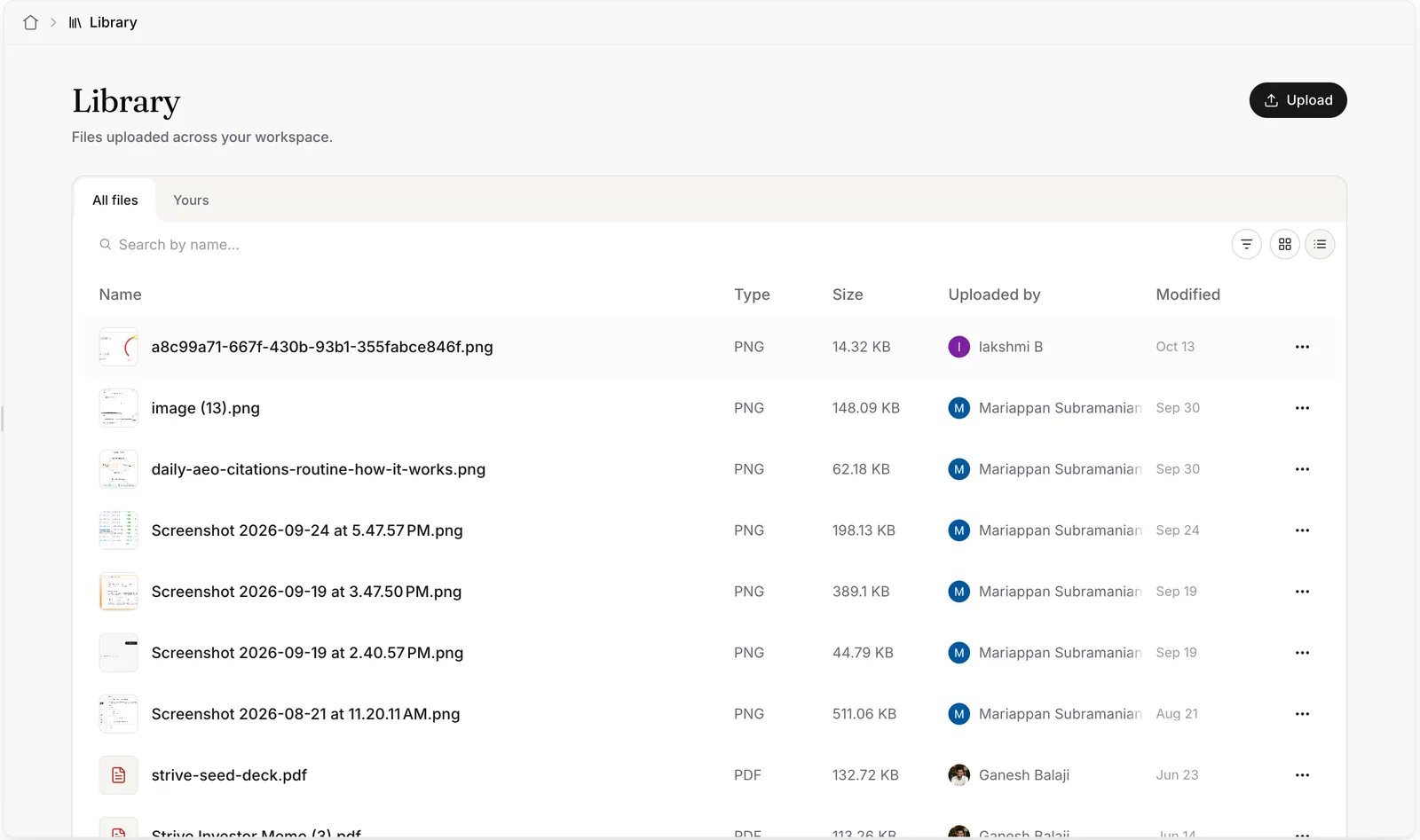
The Library in list view: columns for Name, Type, Size, Uploaded by and Modified. Each row has a small thumbnail, the file name, PNG or PDF, the size, the uploader’s avatar and name, a date, and a more button. The list button is active in the toolbar.
  1. The smallest thumbnail. Every upload gets four sizes. Rows use the 160px one, the grid the 480 or 960, and the panel the largest.
  2. What you scan for. Type, size, who uploaded it and when.
  3. A menu on every row. The same actions as a tile in the grid.
  4. Your view, remembered. Grid or list is a personal preference, so it’s saved in your browser. Grid is the default.
Same files, a view for finding one.

Design call · preview

Open it without leaving

  • A click opens the file in the same side panel Tasks and Blogs use, so it already feels familiar.
  • The no-jump rule holds here too. While an image loads, a placeholder sits at exactly the size it will be drawn, and the image fades in where it was. That’s the recording at the top.
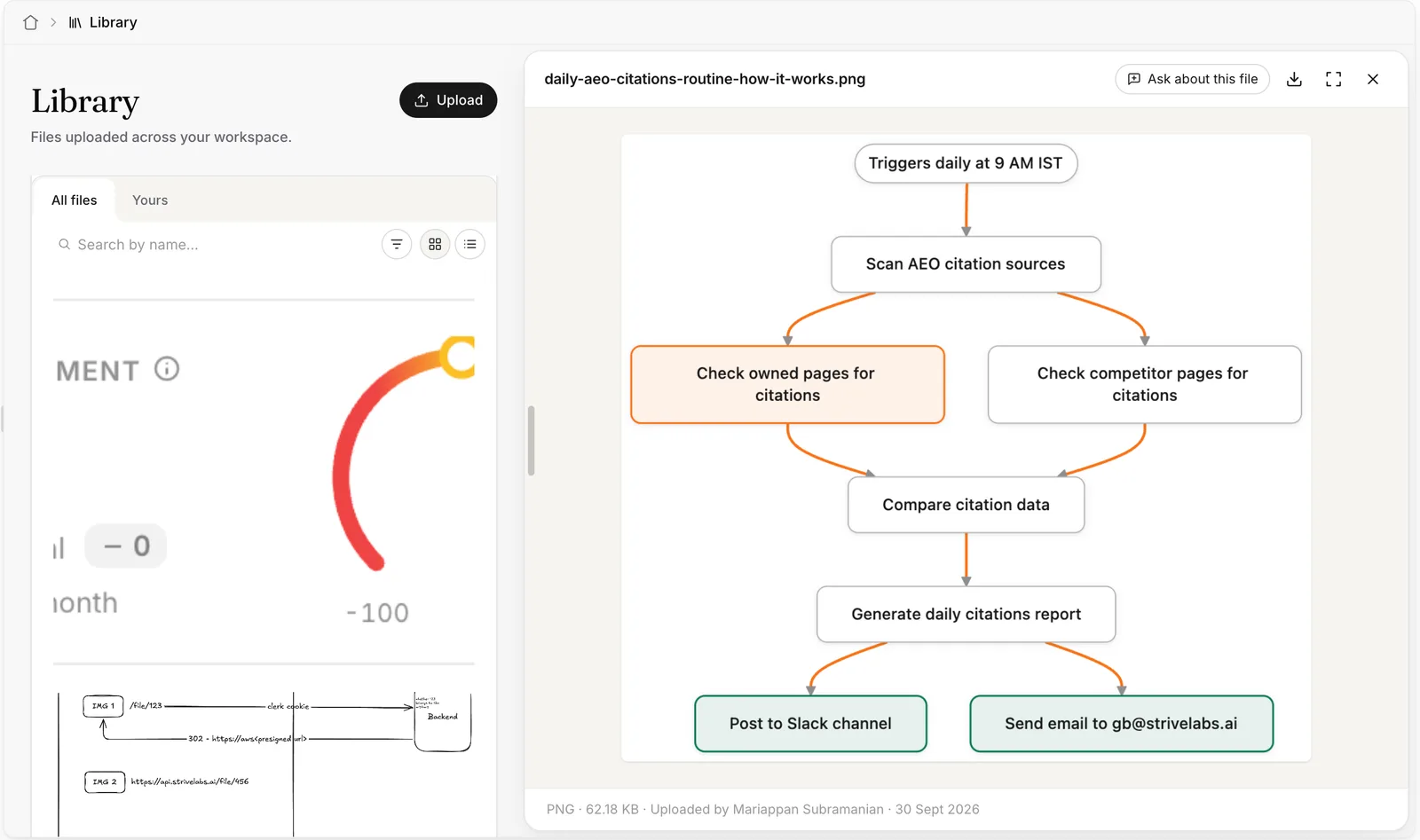
An image open in the side panel: the Library narrows to the left with its title, Upload, tabs and grid, and the panel on the right shows the file name, an Ask about this file button, download, full screen and close, the whole flowchart image, and a footer reading PNG, 62.18 KB, uploaded by Mariappan Subramanian, 30 Sept 2026.
  1. The page makes room. It tightens its margins, and the open file stays outlined so you don’t lose your place.
  2. Shown whole, never stretched. An image is never scaled up past its real size.
  3. Ask about this file. Starts a chat with it attached. More on that below.
  4. Download, full screen, close. A download keeps the file’s original name, even with accents or emoji, and the page stays where it is.
  5. The facts, quietly. Type, size, who uploaded it and when.
Look closer without losing the grid.

Loading · PDFs

A skeleton that steps aside

  • PDFs open in the browser’s own viewer. Until it’s ready, you see a skeleton page: a heading and a few lines.
  • Some browsers never say a PDF has finished loading. So the skeleton steps aside after eight seconds, whatever happens.
A placeholder should never hide the real thing for good.

Into the chat

From the Library into chat

  • Built once, as a common module. An upload from a chat, the blog image picker or the Library shows up in all of them. And since artifacts are made in chat, any file here can feed one.
  • Nothing is sent for you. Ask about this file opens a new chat with the file in the composer, and the first message is whatever you type. Auto-sending “Tell me about this file” would put words in your mouth.
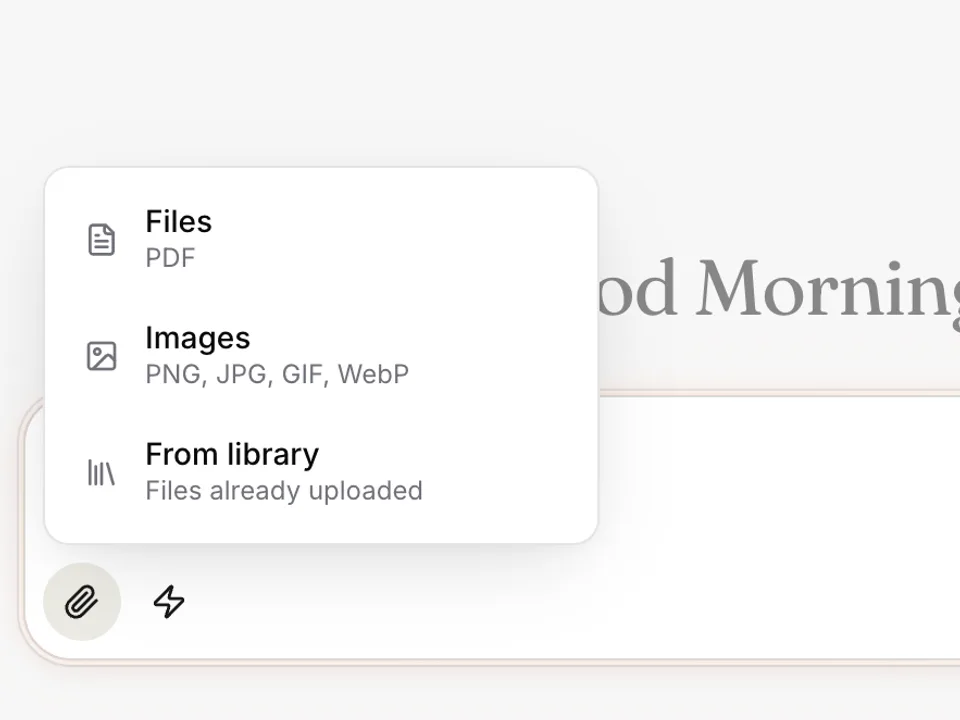
The chat home in Strive with the attach menu open above the composer: Files (PDF), Images (PNG, JPG, GIF, WebP) and From library (files already uploaded).
“From library” sits next to Files and Images in the attach menu.
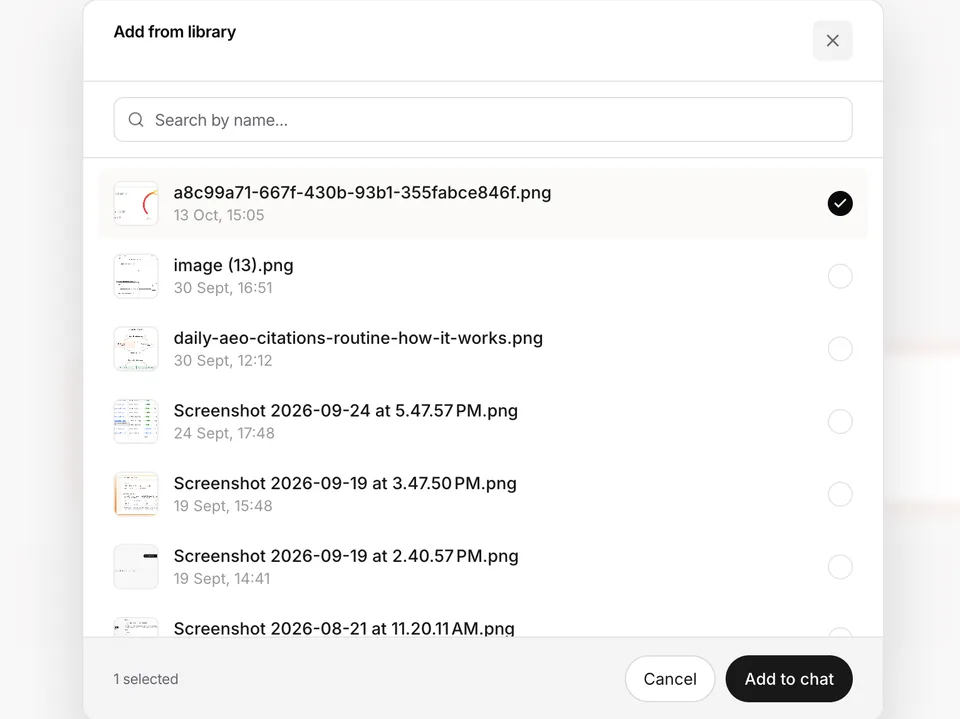
The Add from library dialog over the chat: a search box, a list of files with thumbnails, names and upload times, one ticked, “1 selected”, and Cancel and Add to chat buttons.
Pick several at once, within the chat’s five-file limit. Files already in the chat say “Already attached”.
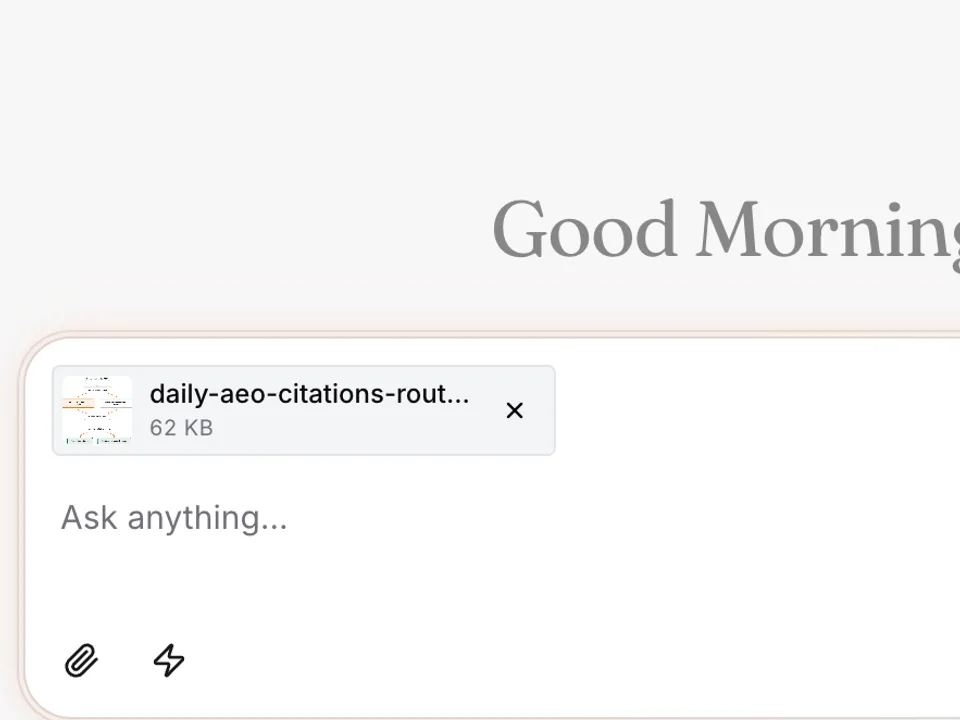
The chat home with a file attached in the composer, shown as a chip with its thumbnail, name and size, above an empty “Ask anything…” box.
The file lands in the composer, with nothing uploaded again. Ask about this file ends here too.

The details

Calm is a lot of small things

  • These are the ones I’m quietly proudest of, because if they work, no one sees them.
  • Never a blank page

    Change a filter, and the current results stay on screen at half opacity until the new ones swap in.

  • Uploads that don’t blink

    Files land in the grid the moment you pick them, dimmed with “Uploading…”, already at their final shape. The placeholder stays until the real file is in the list, so nothing disappears and comes back.

  • A next step in every empty state

    “No files match ‘…’” comes with Clear search, “No PDFs yet” with Show all types, and an empty library with Upload files.

  • Errors you can walk away from

    A failed load shows inside the card, under the tabs, so you can still switch tab or view to get away from it.

  • Scrolling stays ahead

    Files come 40 at a time, and the next page is asked for 800px before you reach the bottom. At the end it says “That’s everything.”

  • Menus that respect touch

    A tile’s more button shows on hover or focus, and always on touch screens, where there’s no hover.

What dried

What I’d keep

  • MissDrew the first panel skeleton in our loading grey. It sat on a panel of almost the same lightness (95.9% against 95.5%), so nobody could see it.

    LessonCheck a placeholder against what’s behind it. Panel skeletons now sit on a white card with a thin border.

  • MissWaited for each image’s load event. A cached image could finish before React was listening, and its tile waited forever.

    LessonDon’t trust an event you might have missed. Each image now checks if it’s already complete as it mounts.

  • LessonShip small, and finish it. No folders, rename or delete in v1: each is a feature with its own questions, like who can delete a teammate’s upload. Real use decides what comes next.

If it feels like nothing happened, it worked.

Thenga’s studio + yard